Passkeys by default: what changes for your Entra tenant
On 1 September 2026, Entra ID started turning on passkeys by default for every user who is still enabled for SMS or voice. On 1 February 2027, Microsoft stops delivering those text messages and calls for most of your users, and anyone whose only MFA method is a phone number gets a blocking passkey registration prompt at sign-in. Nobody gets locked out, but it is a bad morning for the service desk if you haven’t prepared. In this post I walk through the timeline, find the users who depend on SMS and voice with Graph PowerShell, pick a path per user group and end with a dated readiness checklist.
Info
Checked against Microsoft Learn in September 2026. Dates and preview status can still change; I’ll update this post when they do.
Table Of Contents
Passkeys by default: what changes and when
Microsoft describes the change in Passkeys by default and retirement of Microsoft-provided SMS and voice authentication, announced in Message Center post MC1426371 in July 2026 and updated on 15 September 2026 with a later date for Global Administrators and external users.
| Date | What happens | Who is in scope |
|---|---|---|
| 1 September 2026 | Passkeys are auto-enabled in the authentication methods policy, in a passkey profile that allows all passkey types. The registration campaign is set to Microsoft managed and targets passkeys. | Users enabled for SMS or voice in the authentication methods policy or the legacy MFA settings |
| 30 October 2026 | Configuration of your own telephony provider is announced for this date (private preview). | Tenants with a real need to keep SMS or voice |
| 1 February 2027 | Microsoft-provided SMS and voice is retired. Users whose only MFA method is SMS or voice must register a passkey before they can continue. No opt-out. | All users except Global Administrators and external users. Internal guests are included. |
| 1 July 2027 | The same retirement and blocking prompt. No opt-out. | Global Administrators and external users |
The word to read carefully is “Microsoft-provided”. SMS and voice as authentication methods don’t disappear; Microsoft stops being the carrier. If you configure a telephony provider and move the users who need it before their retirement date, those users keep SMS or voice and don’t get the blocking prompt, according to the retirement FAQ.
Note
This timeline applies to the public cloud. Other clouds follow on a later schedule. Azure AD B2C is out of scope, and Microsoft Entra External ID gets a separate announcement next year.
SMS sign-in is a separate retirement
Message Center post MC1474104 (18 September 2026) retires SMS as a primary sign-in method (phone number plus a code, no password) on 1 February 2027 for workforce tenants in Worldwide and GCC. A telephony provider doesn’t keep SMS sign-in alive, as the telephony provider FAQ confirms. If you enabled “Use for sign-in” on any SMS policy target, often for frontline workers, those users need another way in, such as a passkey or QR code authentication.
Who is affected
- Users whose only registered MFA method is a phone number. They hit the blocking prompt after their retirement date.
- Users who have Microsoft Authenticator and a phone number. They lose the phone as a fallback, not their access.
- Self-service password reset. The retirement covers SSPR too, so users who reset their password with an SMS code need another SSPR method. The passkey settings page in the admin center says passkeys can’t be used in the SSPR flow, so a passkey alone doesn’t solve this.
- Guests. Passkey registration isn’t supported for internal or external guests today (known issue); the FAQ says support for B2B and internal guest users is planned by the end of 2026.
External MFA methods are not affected, unless the same users are also enabled for SMS or voice.
Prerequisites
| What | Needed for |
|---|---|
| Authentication Policy Administrator | Passkey policy and profiles, registration campaign, the temporary opt-out |
| Reports Reader, Security Reader, Security Administrator or Global Reader | The per-user report in this post |
| Global Reader, Authentication Policy Administrator or Security Reader | Microsoft’s policy script |
Graph scopes AuditLog.Read.All (report), Policy.Read.All and Group.Read.All (script), Policy.ReadWrite.AuthenticationMethod (opt-out) | PowerShell in this post |
Modules Microsoft.Graph.Authentication, Microsoft.Graph.Reports | PowerShell in this post |
| Microsoft Entra ID P1 or P2 | Authentication methods activity reporting, which the registration details report is part of |
Passkeys themselves are available in all Entra ID editions, including Free. Moving users from Microsoft-provided SMS and voice to passkeys costs nothing; a telephony provider is a separate contract with its own pricing.
Check your tenant now
You need two views: who is in scope by policy, and who actually depends on a phone. Microsoft’s script gives you the first, a short Graph report gives you the second.
Policy scope with Microsoft’s script
Microsoft publishes a read-only script, Get-SmsVoicePolicyUsers.ps1, in the entra-sms-voice-usage-analyzer repository. It reports the registration campaign state, the SMS and voice policy state and its targets (groups, exclusions, individual users) and can export to CSV.
It doesn’t expand groups, look at registered methods or read sign-in activity. “AllUsers” in its output means the policy targets all users, not that every user depends on SMS. Registered is not the same as enabled, so a clean result tells you the policy is clean, not that your users are ready.
Per-user report with Graph PowerShell
The userRegistrationDetails report lists the methods each user has registered. The function below reads it with Get-MgReportAuthenticationMethodUserRegistrationDetail, returns every user with a phone method and flags who has nothing else.
Required: delegated scope AuditLog.Read.All, the two modules and one of the reader roles from the prerequisites.
function Get-PhoneMfaDependency {
    <#
    .SYNOPSIS
        Reports which users depend on SMS or voice for MFA.

    .DESCRIPTION
        Reads the user registration details report from Microsoft Graph and returns one
        object per user who has a phone method registered (mobile phone, alternate mobile
        phone or office phone).

        PhoneOnly is $true when the user has no other registered MFA method that keeps
        working after Microsoft-provided SMS and voice is retired. HasPhishingResistant
        shows whether the user already has a passkey, Windows Hello for Business or a
        comparable method.

        Registered methods are not the same as being enabled for SMS or voice in the
        authentication methods policy. Use Microsoft's Get-SmsVoicePolicyUsers.ps1 for
        the policy view. The report doesn't include disabled users and can lag behind
        actual registrations by up to 36 hours.

    .PARAMETER IncludeAllUsers
        Return every user in the report, including users without a phone method.

    .EXAMPLE
        Connect-MgGraph -Scopes 'AuditLog.Read.All' -NoWelcome
        Get-PhoneMfaDependency | Export-Csv -Path .\phone-mfa-dependency.csv -NoTypeInformation

        Exports all users with a phone method registered to CSV.

    .EXAMPLE
        Get-PhoneMfaDependency | Where-Object PhoneOnly | Group-Object UserType, IsAdmin -NoElement

        Counts phone-only users per user type and admin flag.

    .NOTES
        Modules:    Microsoft.Graph.Authentication, Microsoft.Graph.Reports
        Permission: AuditLog.Read.All (delegated)
        Roles:      Reports Reader, Security Reader, Security Administrator or Global Reader
    #>
    [CmdletBinding()]
    [OutputType([pscustomobject])]
    param (
        [switch]$IncludeAllUsers
    )

    if (-not (Get-MgContext)) {
        throw "Not connected to Microsoft Graph. Run: Connect-MgGraph -Scopes 'AuditLog.Read.All'"
    }

    # methodsRegistered values. Check these against the output in your own tenant.
    $phoneMethods = @('mobilePhone', 'alternateMobilePhone', 'officePhone')

    $phishingResistantMethods = @(
        'windowsHelloForBusiness', 'macOsSecureEnclaveKey', 'fido2SecurityKey',
        'passKeyDeviceBound', 'passKeyDeviceBoundAuthenticator',
        'passKeyDeviceBoundWindowsHello', 'passKeySynced'
    )

    $otherMfaMethods = @(
        'microsoftAuthenticatorPush', 'microsoftAuthenticatorPasswordless',
        'softwareOneTimePasscode', 'hardwareOneTimePasscode'
    ) + $phishingResistantMethods

    $properties = @(
        'id', 'userPrincipalName', 'userType', 'isAdmin', 'methodsRegistered',
        'userPreferredMethodForSecondaryAuthentication', 'lastUpdatedDateTime'
    )

    Get-MgReportAuthenticationMethodUserRegistrationDetail -All -Property $properties |
        ForEach-Object {
            $entry      = $_
            $registered = @($entry.MethodsRegistered)
            $hasPhone   = [bool]($registered | Where-Object { $_ -in $phoneMethods })

            if (-not $hasPhone -and -not $IncludeAllUsers) { return }

            $hasOtherMfa         = [bool]($registered | Where-Object { $_ -in $otherMfaMethods })
            $hasPhishingResistant = [bool]($registered | Where-Object { $_ -in $phishingResistantMethods })

            [pscustomobject]@{
                Id                   = $entry.Id
                UserPrincipalName    = $entry.UserPrincipalName
                UserType             = $entry.UserType
                IsAdmin              = $entry.IsAdmin
                HasPhone             = $hasPhone
                PhoneOnly            = $hasPhone -and -not $hasOtherMfa
                HasPhishingResistant = $hasPhishingResistant
                DefaultMethod        = $entry.UserPreferredMethodForSecondaryAuthentication
                MethodsRegistered    = $registered -join ';'
                ReportUpdated        = $entry.LastUpdatedDateTime
            }
        }
}
Run it and split the result:
Connect-MgGraph -Scopes 'AuditLog.Read.All' -NoWelcome

$report = Get-PhoneMfaDependency
$report | Export-Csv -Path .\phone-mfa-dependency.csv -NoTypeInformation

# Phone-only users per user type and admin flag
$report | Where-Object PhoneOnly | Group-Object UserType, IsAdmin -NoElement
How I read the output:
PhoneOnlyis your priority list. Put these users in a security group (theIdcolumn works for a bulk import) for the campaign and your communication.UserTypeguest withPhoneOnlyis the group to watch: they are in scope for a retirement date but can’t register a passkey in your tenant yet.HasPhonewithoutPhoneOnlymeans the user loses a fallback. IfDefaultMethodissmsor one of the voice values, tell them before February.
Global Administrators are a separate list
isAdmin is true for any admin role, so don’t use it for the 1 July 2027 group. Export the assignments from Entra ID > Roles & admins > Global Administrator, including eligible assignments if you use Privileged Identity Management.
I wouldn’t wait with admins. They should be on a phishing-resistant method anyway, for the same reason I gave in February about locking down Intune admin roles.
What 1 September already changed
Before you change anything, look at what Microsoft already did in your tenant, as at least Authentication Policy Administrator:
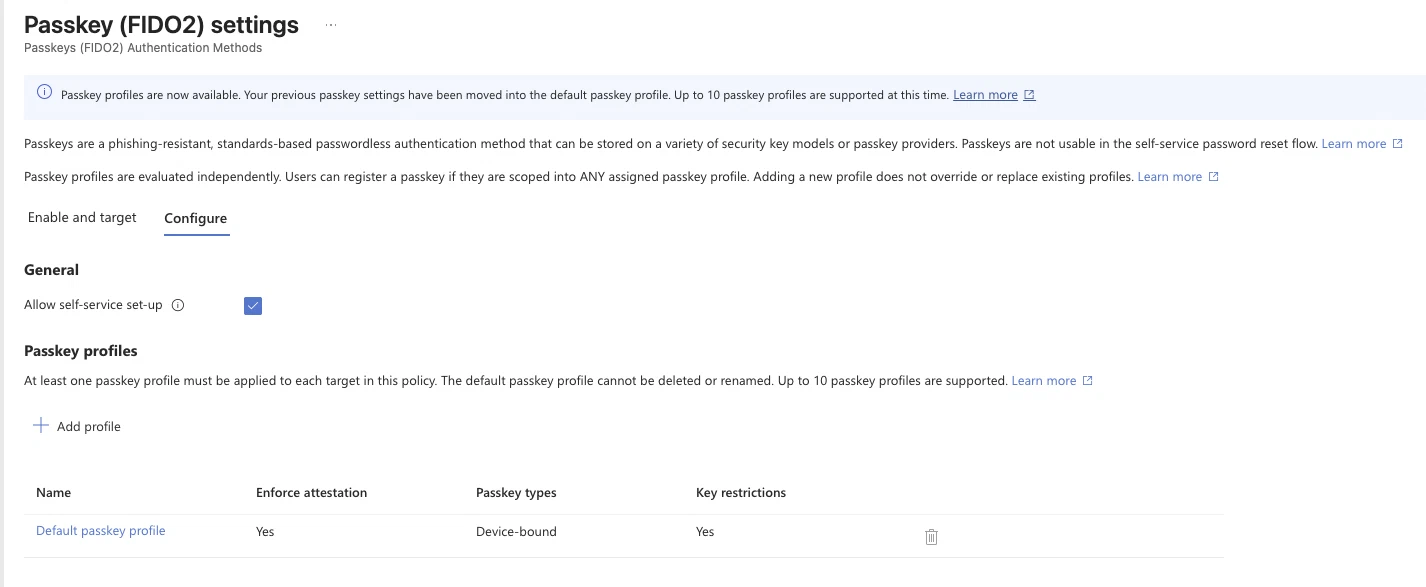
- Go to Entra ID > Authentication methods > Policies. Check whether Passkey (FIDO2) is enabled and which groups it targets.
- Open Passkey (FIDO2) > Configure and look for a profile that allows all passkey types for the users who were enabled for SMS or voice. If you had passkeys configured before, a banner tells you those settings were moved into the Default passkey profile.
- Go to Authentication methods > Registration campaign and check that State is Microsoft managed with passkeys as the target method.
Choose a path per user group
There is no single answer for a whole tenant. This is how I would split it:
| User group | Retirement date | Path |
|---|---|---|
| Members with Authenticator push and a phone | 1 Feb 2027 | Passkey in Microsoft Authenticator, via the registration campaign |
| Members who are phone-only, with a smartphone | 1 Feb 2027 | Synced passkey or passkey in Microsoft Authenticator |
| Users on personal, shared or unregistered Windows PCs | 1 Feb 2027 | Entra passkey on Windows, or a security key |
| Users without a smartphone | 1 Feb 2027 | FIDO2 security key |
| Admins (other than Global Administrator) | 1 Feb 2027 | Device-bound passkey with attestation (security key or Authenticator) |
| Global Administrators | 1 Jul 2027 | Same as other admins, don’t wait for July |
| Internal guests | 1 Feb 2027 | Watch for guest passkey support (planned end of 2026) or convert them to members |
| External users (B2B) | 1 Jul 2027 | Trust MFA from their home tenant in cross-tenant access settings, or wait for guest passkey support |
| Documented regulatory or operational need for SMS or voice | Before the user’s date | Telephony provider |
Device-bound or synced passkeys
Both types are phishing-resistant. The difference is where the private key lives (Passkeys (FIDO2) in Entra ID):
- Device-bound: the key stays on one device. Passkey in Microsoft Authenticator, a FIDO2 security key, or an Entra passkey on Windows.
- Synced: the key is encrypted and synced through a passkey provider such as iCloud Keychain, Google Password Manager, 1Password or Bitwarden. Synced passkeys don’t support attestation.
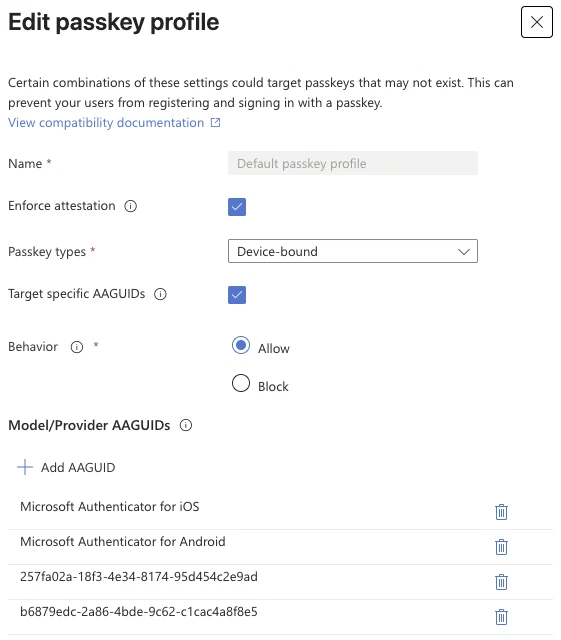
That last point decides a lot. If you set Enforce attestation to Yes in a passkey profile, only device-bound passkeys can register. Microsoft’s guidance is security keys or Authenticator passkeys for privileged and highly regulated users, and synced passkeys for most others.
Plan your passkey profiles before you build them (Enable passkeys (FIDO2)):
- Up to 10 passkey profiles are supported, including the Default profile, according to the admin center in my lab tenant. The Default profile can’t be deleted or renamed.
- Opting in to passkey profiles can’t be undone.
- Allow self-service set up is a global setting. If it is off, nobody can register a passkey through Security info.
- Users must have completed MFA in the last five minutes before they can register a passkey.
- Attestation is checked at registration only. Turning it on later doesn’t block passkeys that were registered without it.
- If a user is in more than one profile, a passkey is allowed when it meets at least one of them.
- If a profile allows both types and targets Microsoft Authenticator, users need Authenticator 6.8.37 on iOS or 6.2507.4749 on Android.
The layout I would start with: a profile that allows all types for general users, an admin profile (device-bound, attestation enforced) and a Windows profile (device-bound, Windows Hello AAGUIDs). Keep the multi-profile rule in mind: if you add admins to the Windows profile, they can register an unattested Windows passkey too.
Entra passkey on Windows
Microsoft Entra passkey on Windows stores a device-bound passkey in the local Windows Hello container. The device doesn’t need to be Entra joined or registered and it works on Windows 10 and 11 with Windows Hello support. It doesn’t sync and it doesn’t do device sign-in.
It doesn’t replace Windows Hello for Business, which stays the recommended option on corporate Entra joined devices. Entra passkey on Windows is for the PCs you don’t manage: personal, shared or contractor devices. I wrote about that scenario in January, in my post on Cloud PC access from unmanaged devices.
To enable it, add a device-bound passkey profile that allows only the Windows Hello AAGUIDs, with Enforce attestation off (this profile can’t enforce it), and target a group with it. Users register through Security info > Add sign-in method > Passkey.
One catch: on an Entra joined or registered device, Windows Hello setup can register a WHfB credential for the same account, and the passkey registration then fails with “already registered”. Don’t expect the Windows profile to work on managed, WHfB-enabled PCs.
Telephony providers if you need SMS or voice
Info
Choose your own telephony provider is in private preview. Microsoft announced the configuration experience for 30 October 2026; as I write this in September 2026 it isn’t available yet.
Microsoft’s position in Choose a telephony provider is passkeys first, and a provider only for user groups with a documented business, regulatory or technical need. The essentials so far:
- You contract a provider through Microsoft Security Store. The initial private preview providers are Soprano and Telesign.
- One provider per channel (SMS, voice), for Microsoft Entra ID only.
- You own the provider relationship: contract, regional coverage, delivery issues.
- The setup uses a routing function in your Azure subscription, with Azure consumption charges on top of the provider costs. An evaluation mode lets you test delivery while users still get codes the current way.
I haven’t been able to try it yet. If you need it, pick a provider in October and start the evaluation as soon as configuration opens; a phased rollout before 1 February is not something to start in January.
Registration campaign and user communication
The registration campaign nudges users to register a passkey after they complete MFA. In the Microsoft managed state users can snooze for one day, as often as they like. In the Enabled state you choose 0 to 14 days and can limit snoozes to three. Closer to the deadline, Enabled with limited snoozes turns the nudge into a firm request on your schedule instead of on 1 February. Snooze settings apply tenant-wide, not per group.
The nudge is evaluated per device and browser: a passkey in Authenticator doesn’t stop the nudge on Windows with Chrome, a security key stops it everywhere. Linux users and native Android apps don’t get the nudge.
For communication, Microsoft suggests three phases (awareness, action, reminder) and provides end-user templates for email and Teams. Send them to the phone-only group from your report, not to the whole company.
The temporary opt-out
Warning
The opt-out uses a Microsoft Graph beta endpoint and only applies from 1 September 2026 to 1 February 2027. It delays the automatic passkey enablement and the registration campaign rollout. It does not delay the retirement: from 1 February 2027 the standard timeline applies regardless. Checked September 2026.
Use it when a user group will move to a telephony provider and you don’t want them nudged towards passkeys in the meantime, not to postpone the decision.
The request from Microsoft Learn:
PATCH https://graph.microsoft.com/beta/policies/authenticationmethodspolicy
Content-Type: application/json

{
  "optOutSettings": {
    "passkeyDynamicMigration": true
  }
}
The same with Graph PowerShell. Required scope: Policy.ReadWrite.AuthenticationMethod; role: Authentication Policy Administrator.
Connect-MgGraph -Scopes 'Policy.ReadWrite.AuthenticationMethod' -NoWelcome

$uri  = 'https://graph.microsoft.com/beta/policies/authenticationmethodspolicy'
$body = @{ optOutSettings = @{ passkeyDynamicMigration = $true } } | ConvertTo-Json -Depth 3

Invoke-MgGraphRequest -Method PATCH -Uri $uri -Body $body -ContentType 'application/json'

# Read the setting back
(Invoke-MgGraphRequest -Method GET -Uri $uri).optOutSettings
Gotchas
- The registration details report can lag up to 36 hours and doesn’t list disabled or soft-deleted users. Run it again a day after a registration push before you draw conclusions.
- Removing an AAGUID from a profile’s key restrictions blocks sign-in for passkeys already registered with it. Turning off synced passkeys in a profile does the same for synced passkeys.
- If a user’s UPN changes, their passkey can’t be updated. They delete it in Security info and register a new one.
Readiness checklist
- This week: run Microsoft’s script and
Get-PhoneMfaDependency, and create a security group with the phone-only users. - This week: check what 1 September changed: passkey policy, passkey profiles and registration campaign state.
- Before the end of September: decide a path per user group, plan your passkey profiles and pull the Global Administrator list.
- October: if a group needs SMS or voice, choose a provider before configuration opens on 30 October 2026 (private preview), and decide whether you need the opt-out.
- October: send the awareness message to the phone-only group. Hand out security keys to users without a smartphone.
- November: start the telephony provider evaluation, send the action message and check SSPR methods and any SMS sign-in users.
- December 2026: check whether passkey registration for guests is available.
- January 2027: send the reminder, consider switching the campaign to Enabled with limited snoozes and rerun the report. The phone-only list should now be empty or covered by a provider.
- 1 February 2027: retirement for everyone except Global Administrators and external users. SMS sign-in stops.
- Before 1 July 2027: Global Administrators and external users on a phishing-resistant method.
Next steps
Start with the report; the size of your phone-only group decides how busy your next four months are. Bookmark Microsoft’s SMS and voice retirement page for date changes, and use Plan a passkey deployment in Microsoft Entra ID for the rollout itself.